
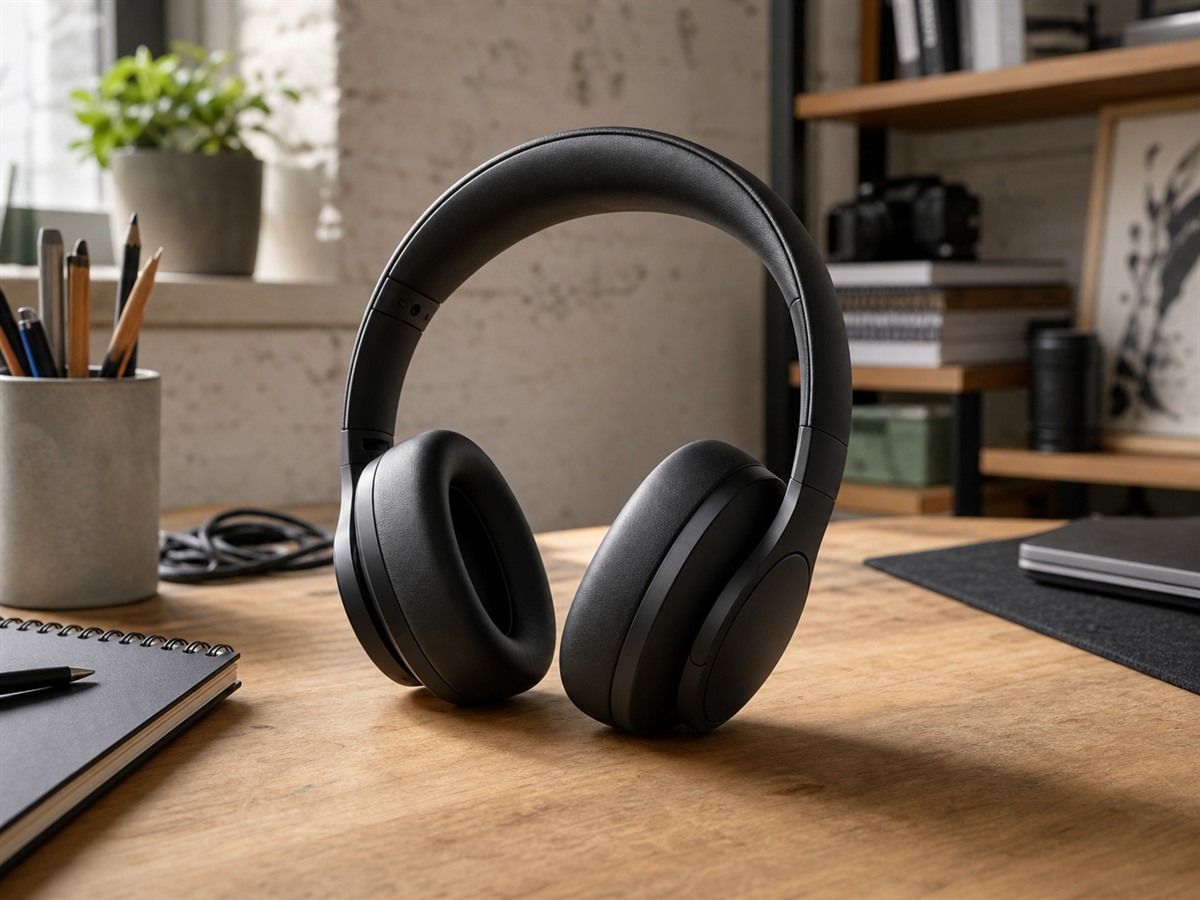
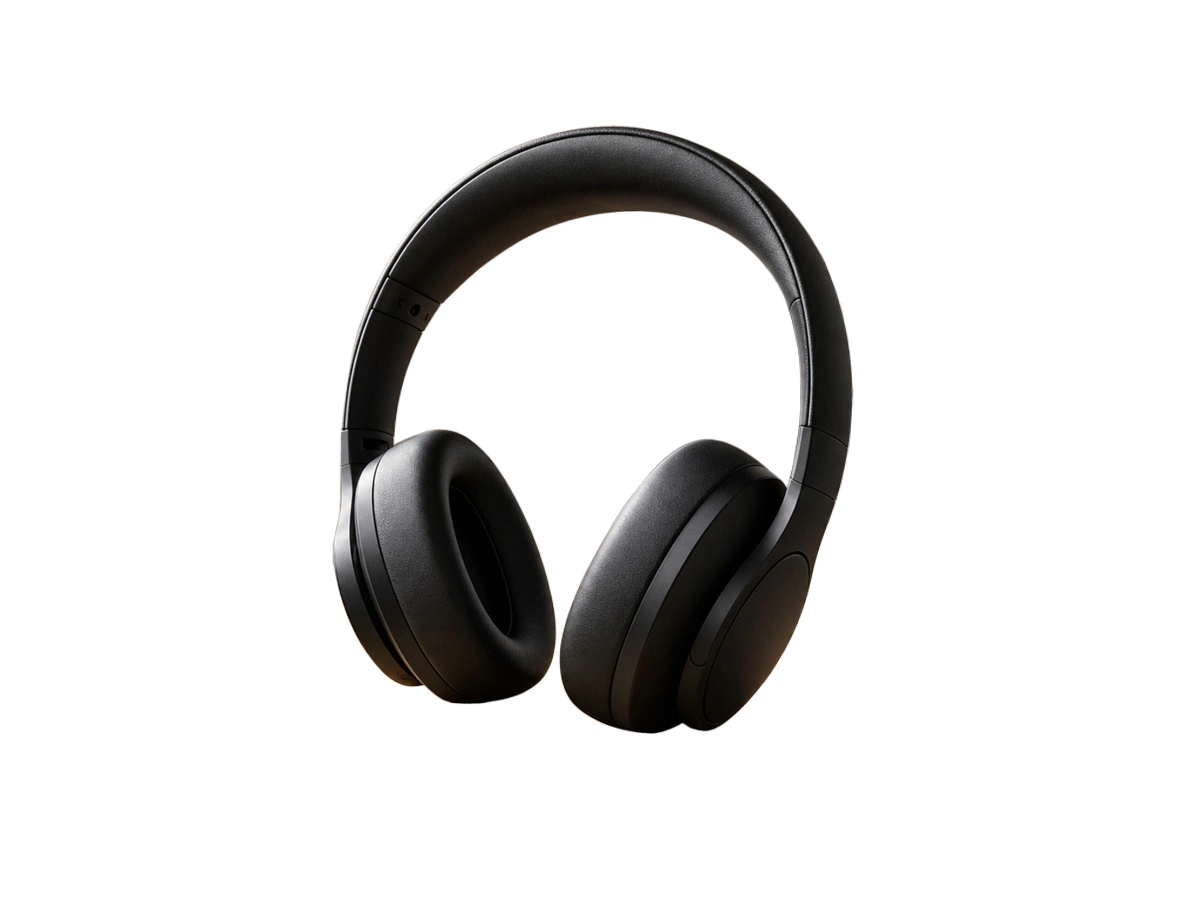
Hard edges
Dedicated AI background remover
Upload one image and get a transparent result you can inspect before export. Preview the same cutout on transparent, white, black, or a custom solid color.
PNG, JPG, or WebP · Up to 5MB and 16 megapixels · Each side 256-4096px · Your image is sent to our AI provider to complete this request.
Drop an image onto the canvas
Choose a clear product, portrait, or object photo with a visible foreground subject.
Real output pairs
Compare the source with the actual transparent output. The checkerboard reveals open areas around the subject instead of simulating a white background.
Hard edges
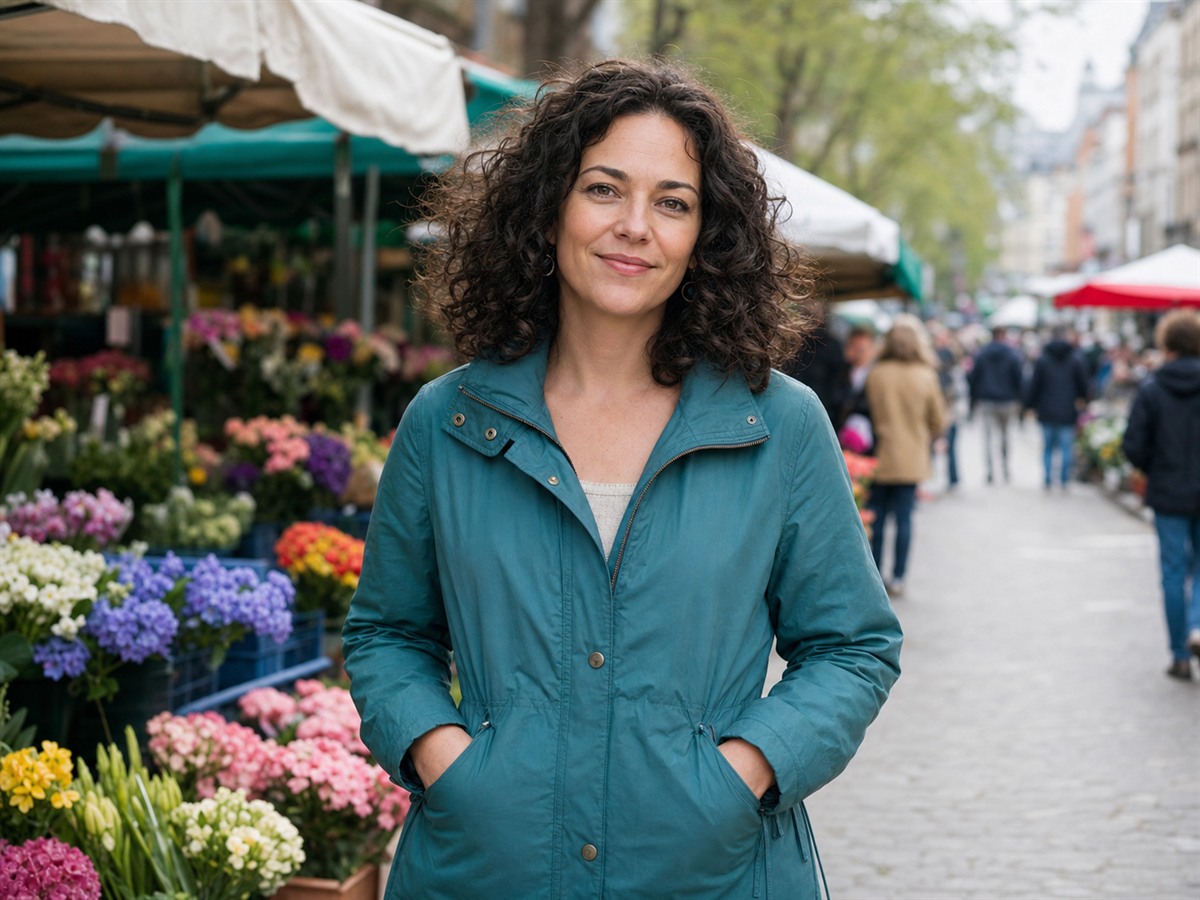
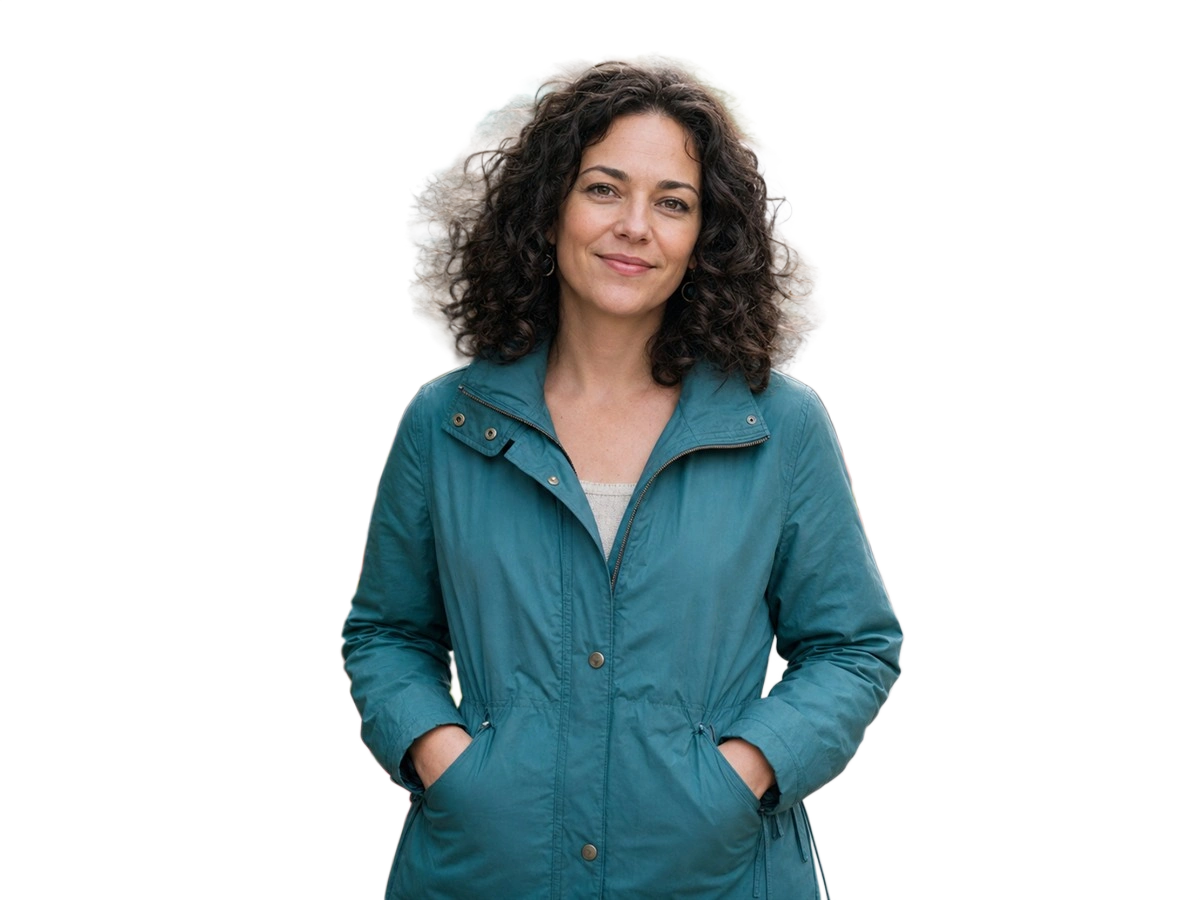
Hair and clothing
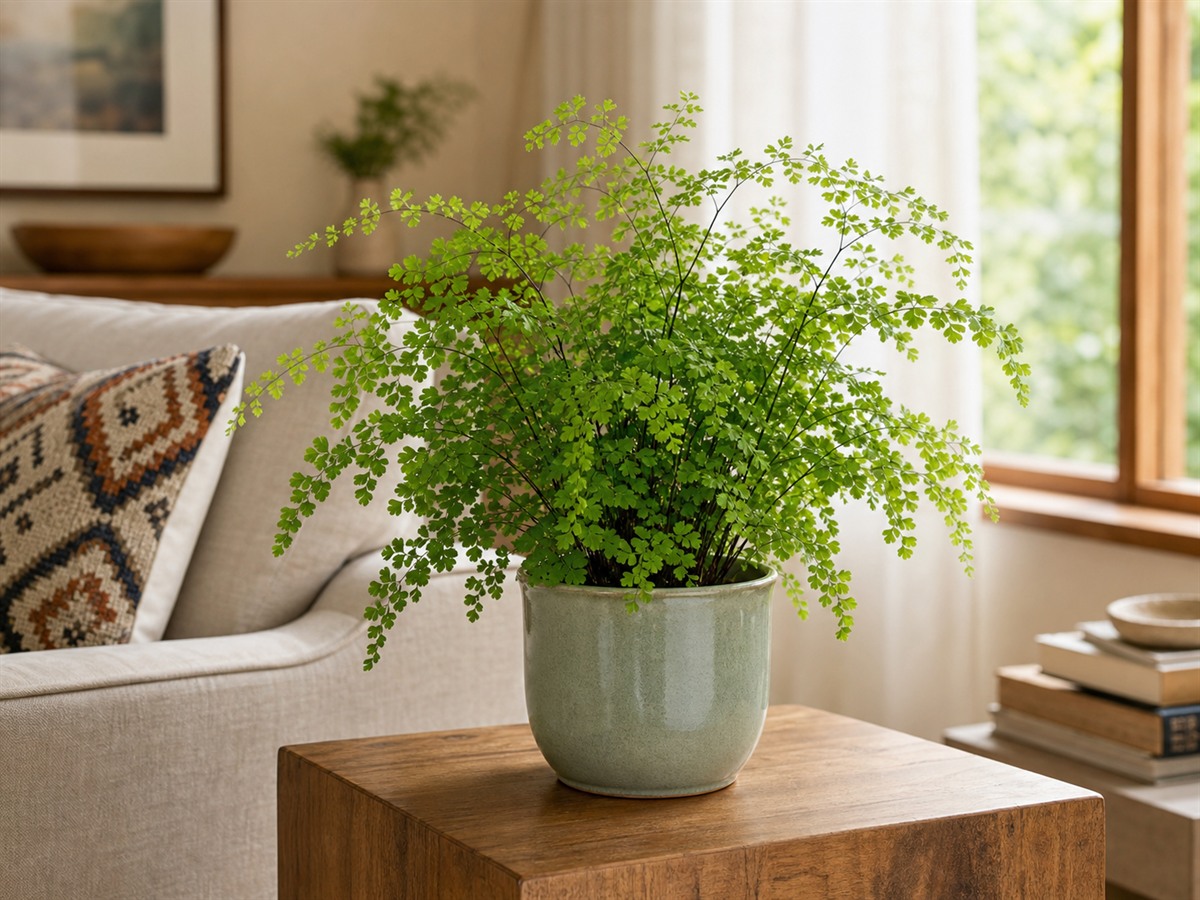
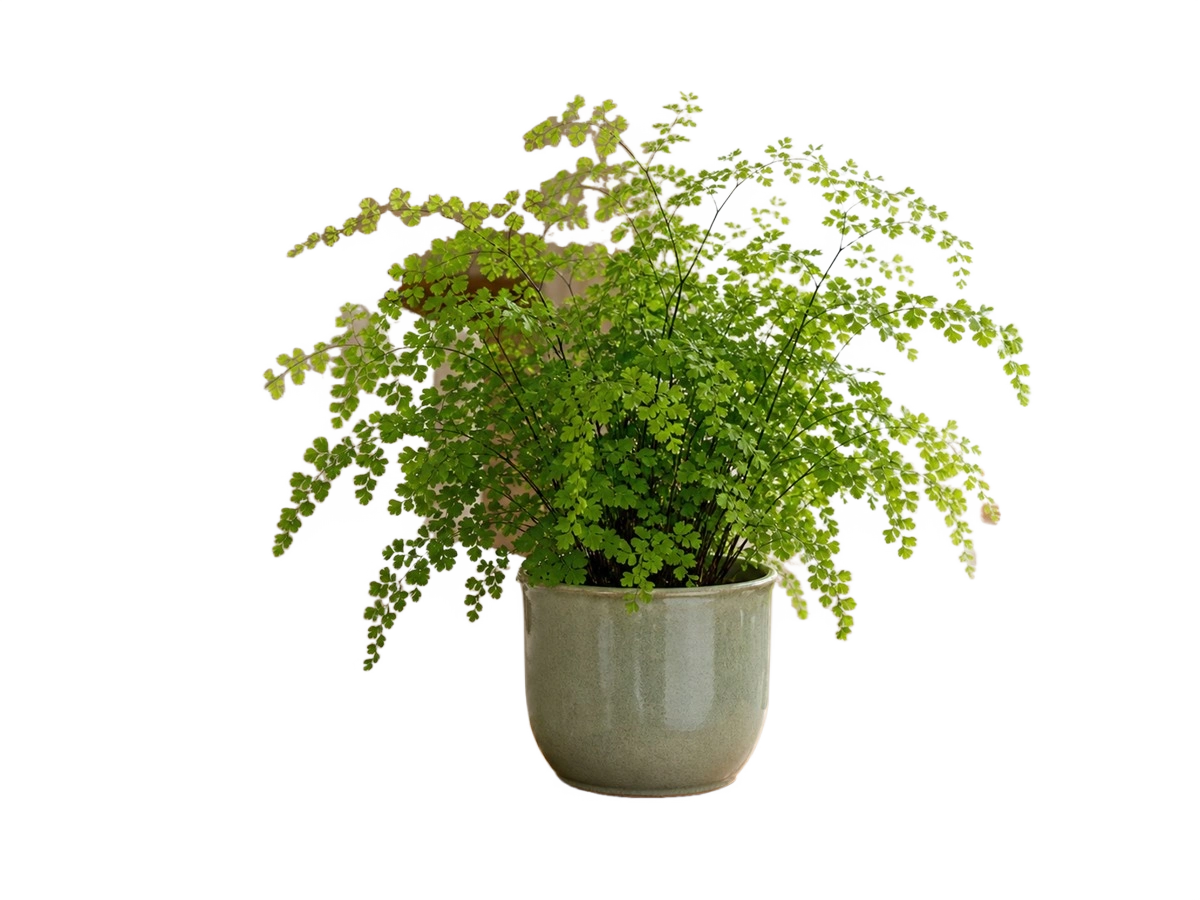
Fine natural edges
Each transparent result is paired with its source image and contains a real alpha channel. No blur, grayscale, or CSS filter is used to imitate removal.
Edge guide
Different subjects fail in different places. Review the result at full size whenever the outline affects a final design or listing.
Inspect corners, handles, cables, and gaps inside the object. Clear contrast between subject and background usually gives the cleanest separation.
Zoom in around loose hair, glasses, and clothing. Very similar foreground and background colors may require a different source photo.
Leaves and thin stems expose missed pixels quickly. Check them on both a light and dark preview background.
Glass, reflections, motion blur, and heavy shadows are difficult boundaries. Inspect the alpha result carefully before production use.
Export guide
Transparency requires PNG. Solid-background exports use the color visible in the workbench, so the downloaded file matches the preview.
Keep the alpha channel for design tools, layered compositions, and reusable product assets.
Composite the subject on the selected solid color and keep lossless PNG output.
JPG does not support transparency, so a white, black, or custom background is required.
Workflow
The tool keeps background removal, inspection, and export in one focused workspace.
Add one PNG, JPG, or WebP that meets the displayed file, pixel, and dimension limits.
The dedicated model separates the primary subject and returns an image with transparency.
Switch between the original and result, test preview colors, then download PNG or a solid-background JPG.
FAQ
The practical limits and output behavior to know before starting a task.